Skapa länkar och bakåtlänkar
Hoppsan! Det verkar som om din annonsblockerare hindrar videon från att spelas upp.
Titta på den på YouTube

Notion makes it easy to link to all kinds of content in and outside of your workspace 🔗
Gå till vanliga frågorInbyggt i ett stycke
There are a few ways to link another Notion page inside a paragraph:
@-mention: Type
@, then start entering the name of the page you want to link. Find and select it in the menu that appears.[[ command: Type
[[, then start entering the name of the page you want to link. Find and select it in the menu that appears.+ command: Type
+, then start entering the name of the page you want to link. Find and select it in the menu that appears.
As a block
You can insert a link into a Notion page as a block so you can easily place it wherever you want in the page. To do this:
In a page, enter the slash command
/link. Alternatively, you can click the+that appears on hover to the left of any block, and selectLink to pagefrom the dropdown.Start entering the name of the page you want to link. Find and select it in the menu that appears.
To move the block, click
⋮⋮to the left of it and drag it to your desired location in the page.

Obs: När du lägger till ett Länk till sida-block visas det i sidofältet under sidan som det ingår i, precis som vilken annan undersida som helst.
Every block in Notion has its own anchor link that can be copied and shared. These are great for directing someone's attention to a specific part of a long Notion page! To link to a specific block:
Hover over the block and click the
⋮⋮that appears to the left.Select
Copy link. This will copy the URL of that specific block to your clipboard.Paste this URL anywhere — in a Notion page, a Slack message, an email, and more.
When you paste a web page’s URL into Notion, it can create a compact, easy-to-read link mention to help your page look nice and clean. You can even hover over the link to see a quick preview. To use a link mention in your page:
Paste the URL.
In the menu that appears, select
Paste as mention.The web page will be displayed with an icon, the source, and the title of the page.
Note:
Link mentions work best with public web pages. Any links that require certain permissions or authentication to view won’t be pasted into Notion with any rich information.
If your browser has cookies blocked, link mentions may not render properly.

When you link to something inside of an app that integrates with Notion, Notion can generate a preview for it! Learn which platforms are supported here →
Backlinks show you all the pages that link to the page you’re currently on. You can use these to navigate your workspace.
Backlinks are created automatically every time you @-mention a page. To see a page’s backlinks, select {#} backlinks under its title, or its properties if it’s a database page.
You will only be able to see backlinks for pages you have access to. Other people won’t see backlinks to your private pages. Backlinks to pages that are only visible to you will be labeled as Private.
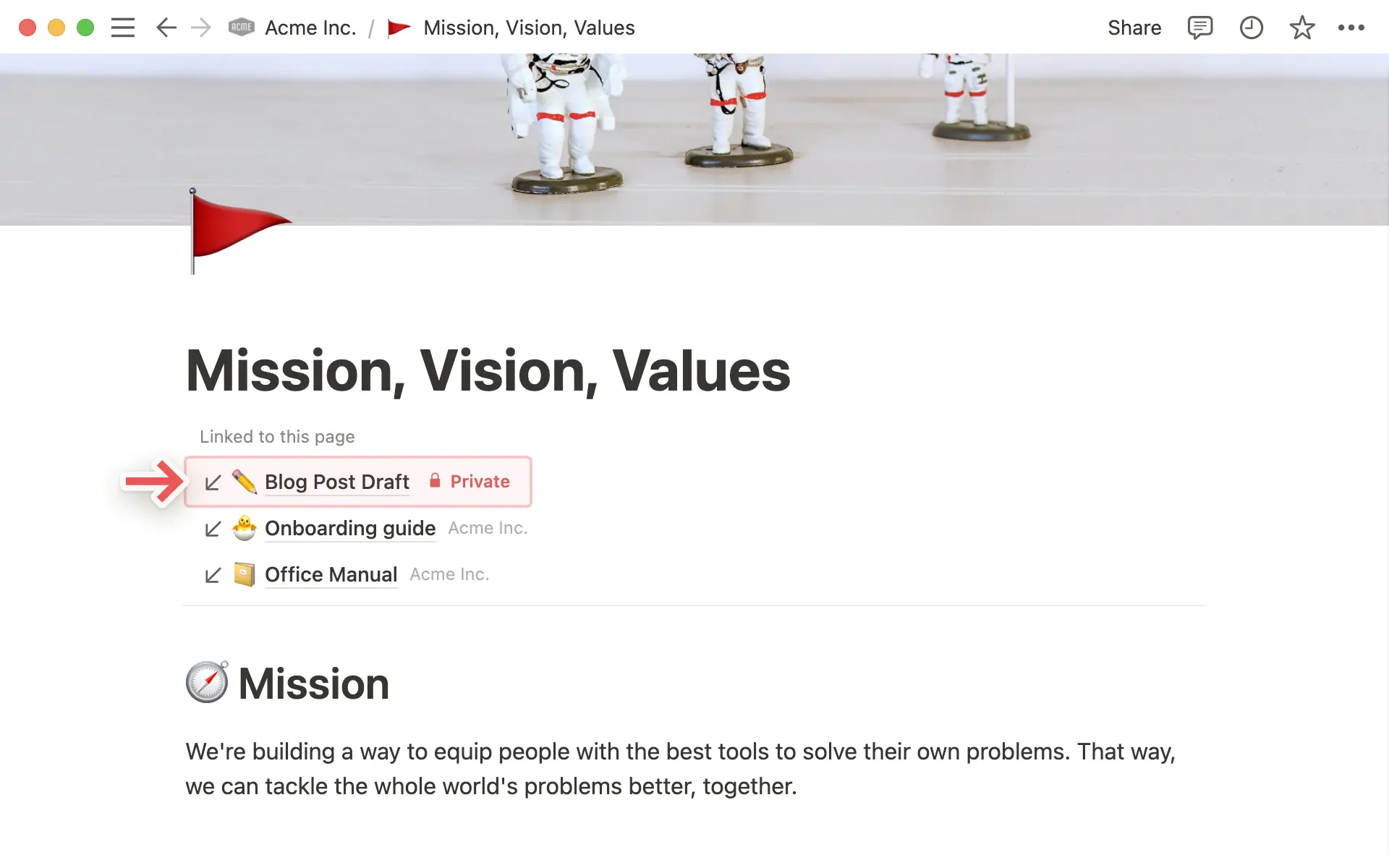
In any page, you can choose whether you want to display backlinks at the top and how you want to show them. To customize your backlinks:
Select
•••at the top of the page →Customize page.Open the dropdown next to
Backlinks.Select one of the following:
Expanded: This will show you the full list of backlinks for your page.Show in popover: This will only show you the number of backlinks for your page, and you’ll have to click to see the full list of backlinks.Off: This will hide any information about backlinks for your page.
Learn more
Vanliga frågor
Hur öppnar jag automatiskt länkar till Notion-sidor i skrivbordsappen?
Hur öppnar jag automatiskt länkar till Notion-sidor i skrivbordsappen?
Om du vill att alla länkar till en Notion-sida ska öppnas i din skrivbordsappen:
Öppna Notion i din webbläsare.
Gå till
Inställningar→Preferenser.Växla på
Öppna länkar i skrivbordsappen.
Du måste redan ha skrivbordsappen installerad. Du behöver även gå till Notion i din skrivbordsapp och se till att Öppna Notion-länkar i webbläsaren är avstängt i dina inställningar.
Vad är skillnaden mellan att @-omnämna en sida och att lägga till ett 'Länk till sida'-block?
Vad är skillnaden mellan att @-omnämna en sida och att lägga till ett 'Länk till sida'-block?
Länk till sida fungerar ungefär som att skapa en undersida. När du refererar till en Notion-sida på detta sätt visas den i sidofältet som en undersida till sidan där den länkades.
Att @-omnämna en sida skapar något som liknar en hyperlänk. Sidor som du @-omnämner visas inte som undersidor till de sidor de har omnämnts i.
